Create Transportation Routes
Under the Cargo Management module, you can find the management entry for transportation routes.
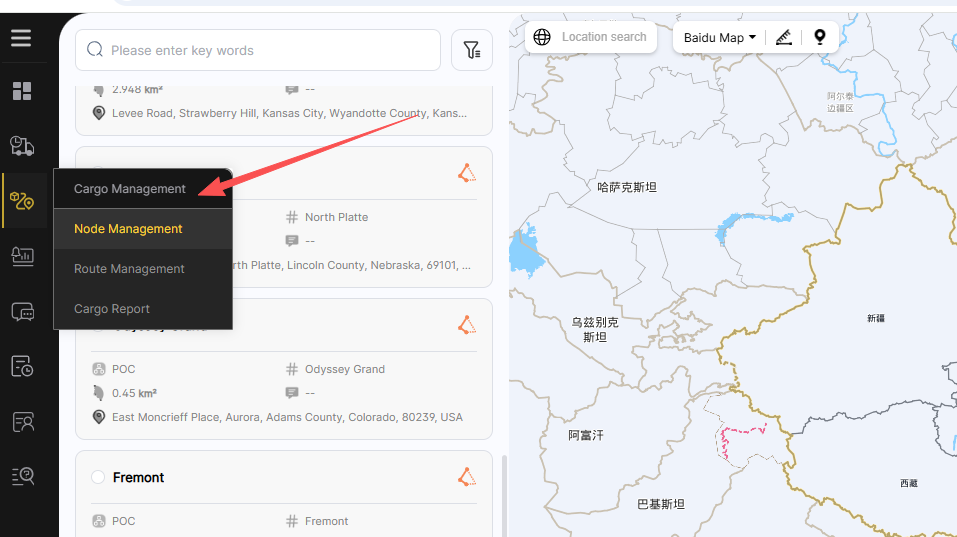
1.Node Management
Node Management refers to transportation stations, which can be expressed differently according to various business scenarios—such as warehouse, transit depot, parking lot, unloading point, etc. These are a series of locations where goods depart from, pass through, or end their journey.
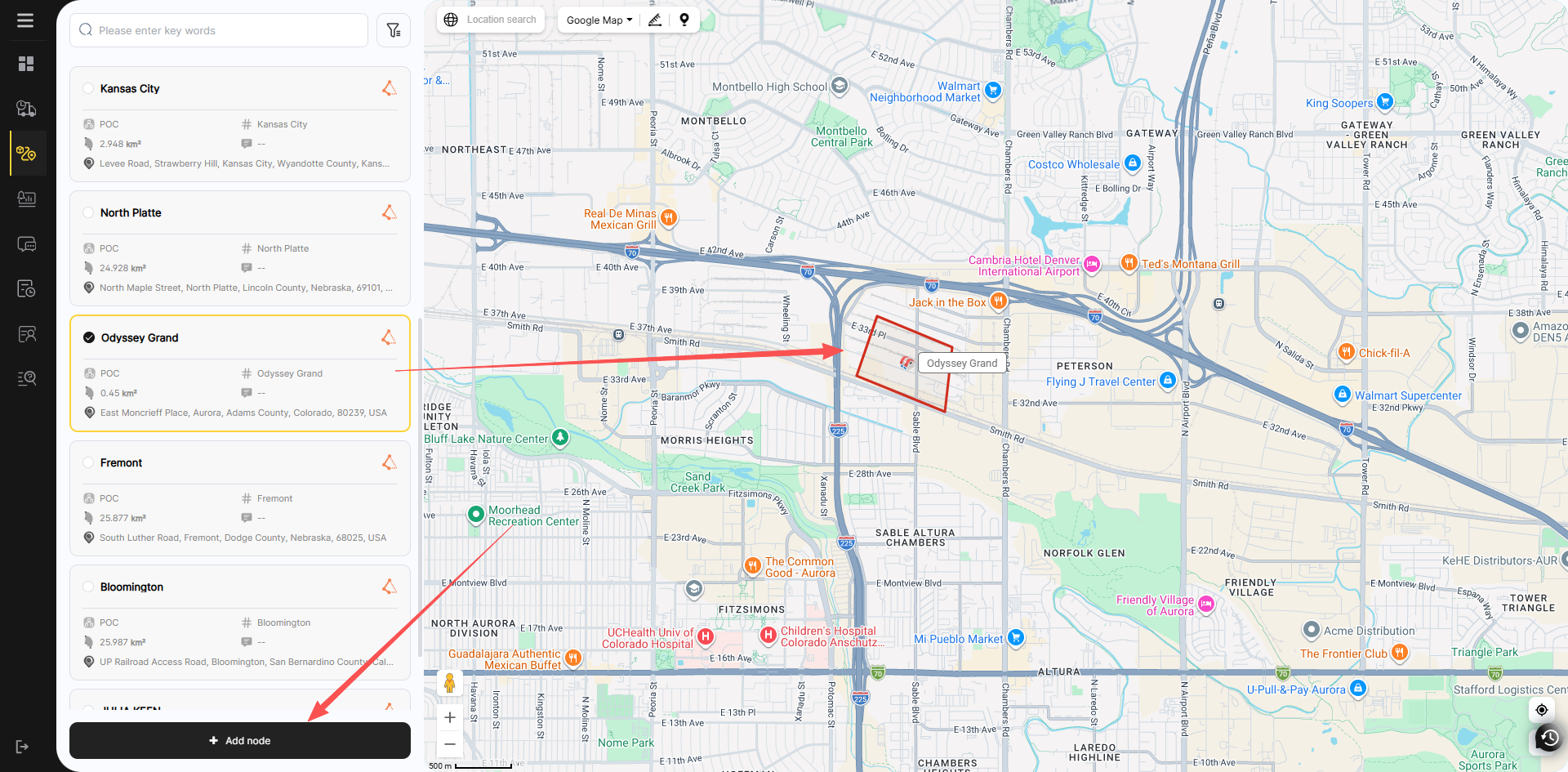
Click the Add Node button in the bottom-left corner to quickly create a node.
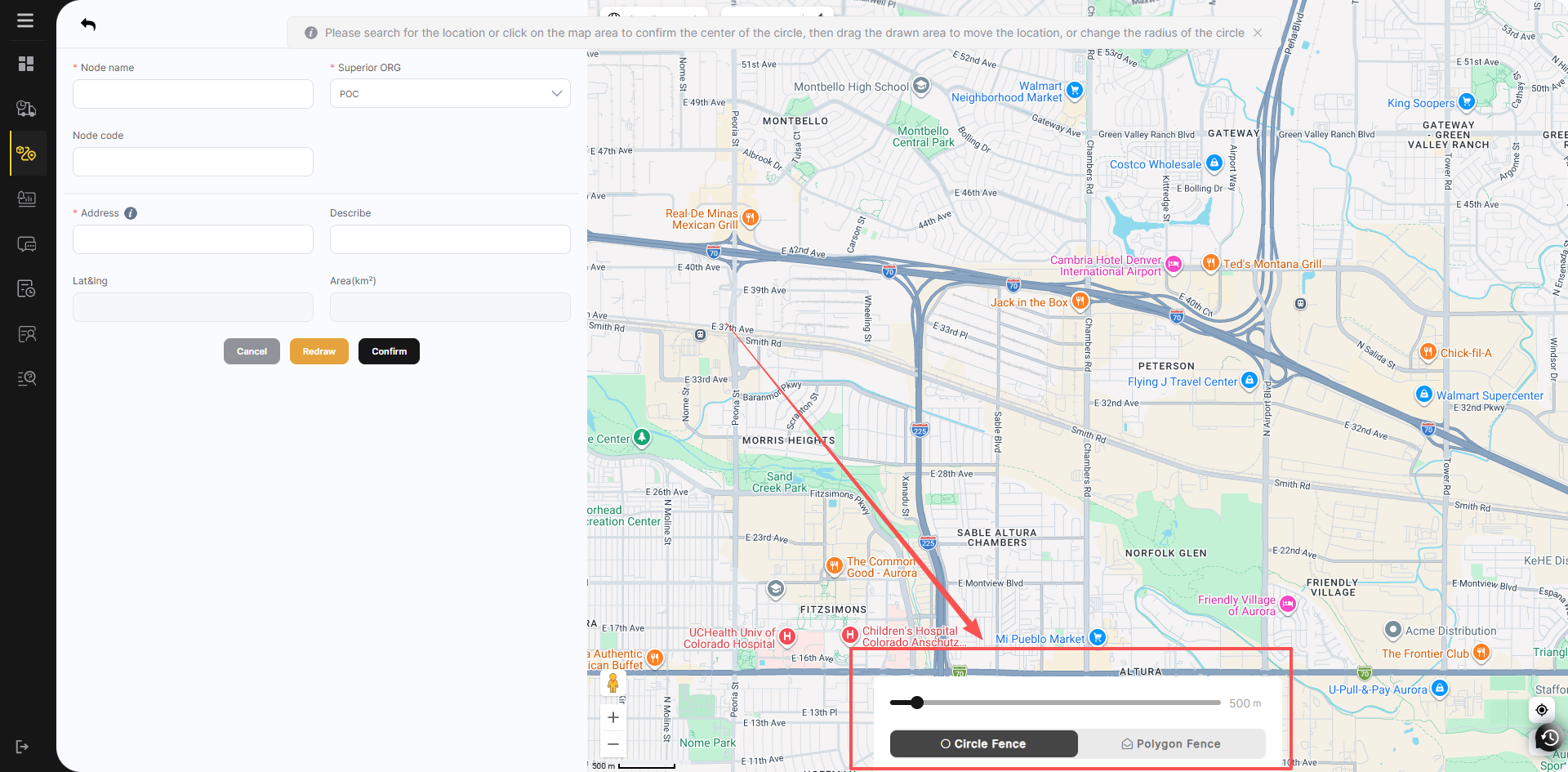
It supports two different fence setting methods: circle and polygon.
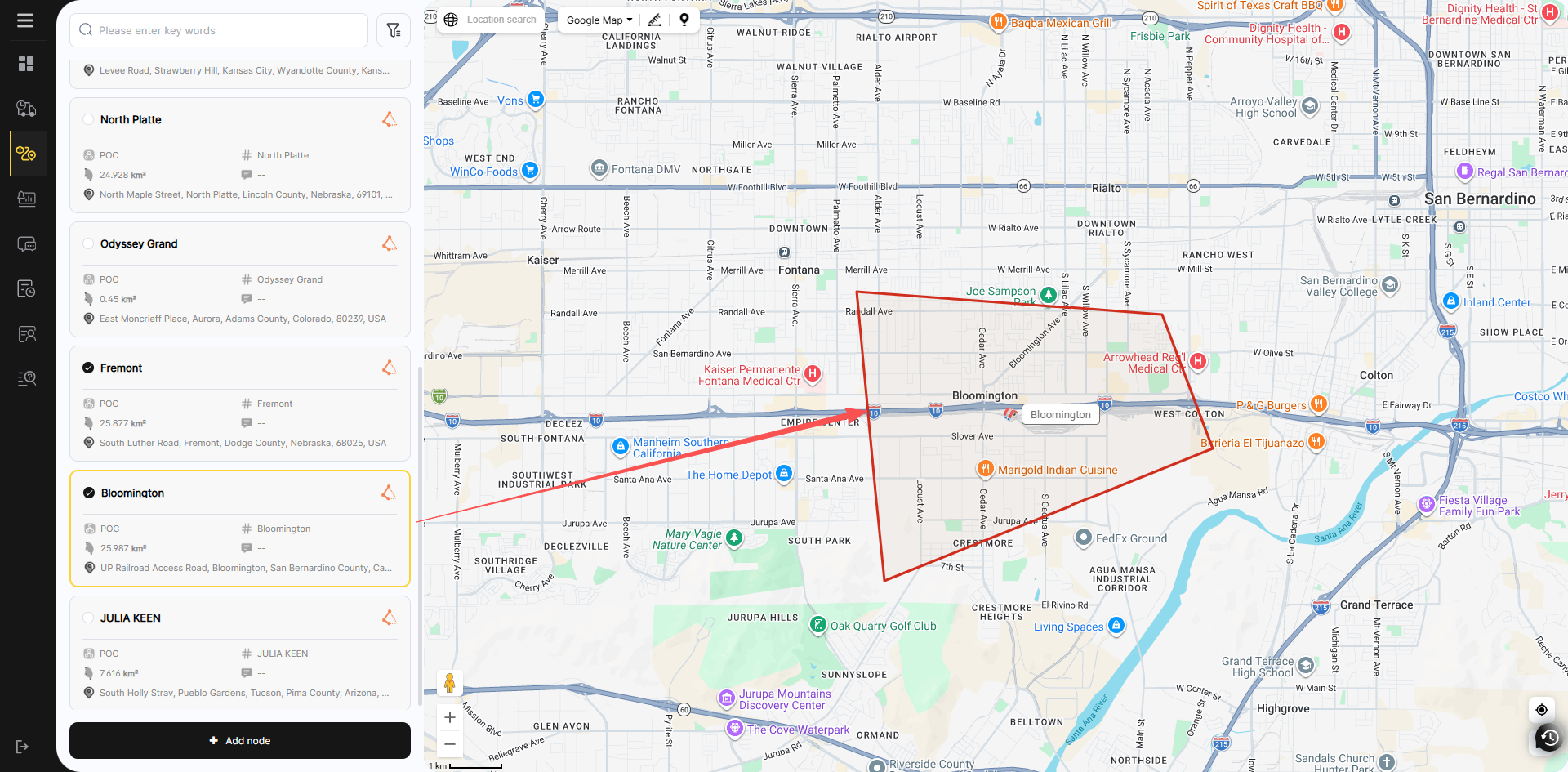
Select the created node to view its detailed information on the map.
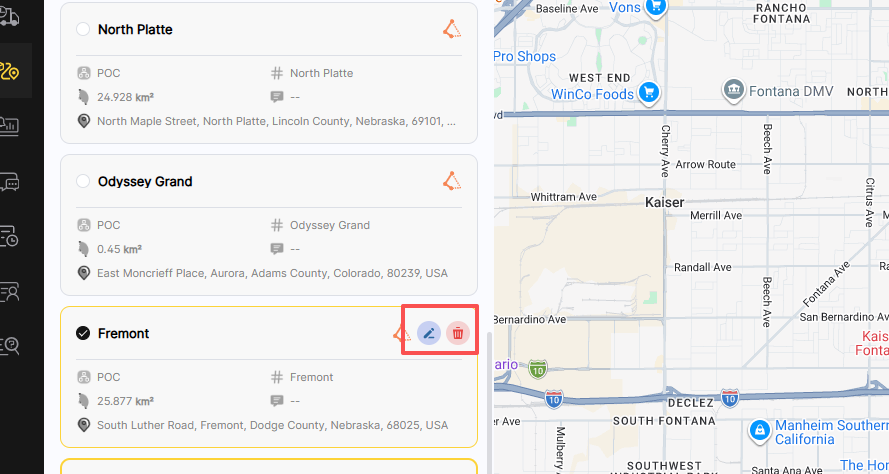
Move your mouse over a node to perform edit and delete operations on it. The orange icon on the left indicates whether the fence is circular or polygonal.
2.Create Transportation Routes
Transportation routes serve as the core function of the entire business. When we dispatch task orders, we monitor the current node that the goods have reached via transportation routes. We can also leverage the advanced applications of transportation routes to implement road deviation alerts during the transportation process.
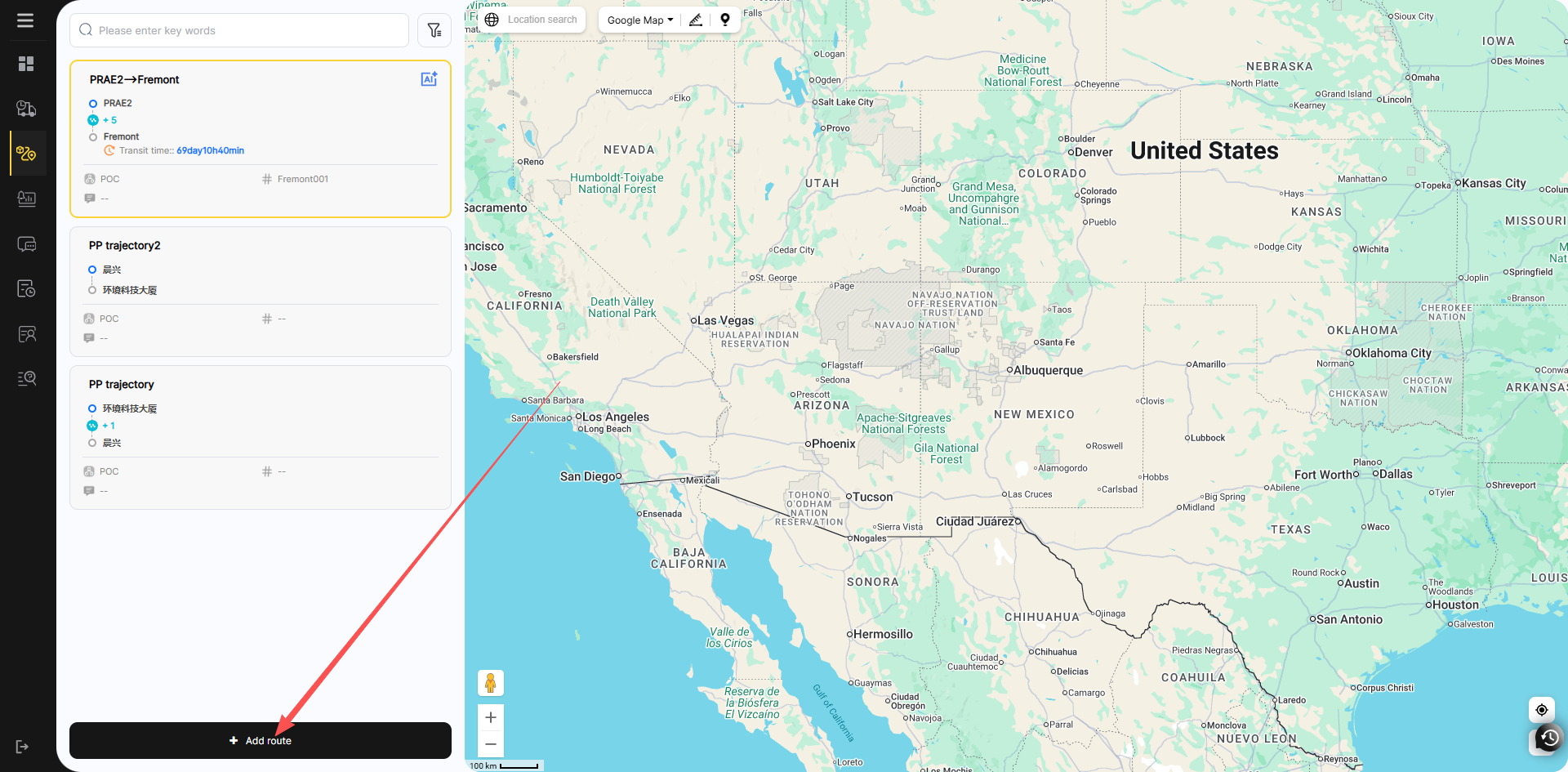
Click the Add Route button in the bottom-left corner to add a new route.
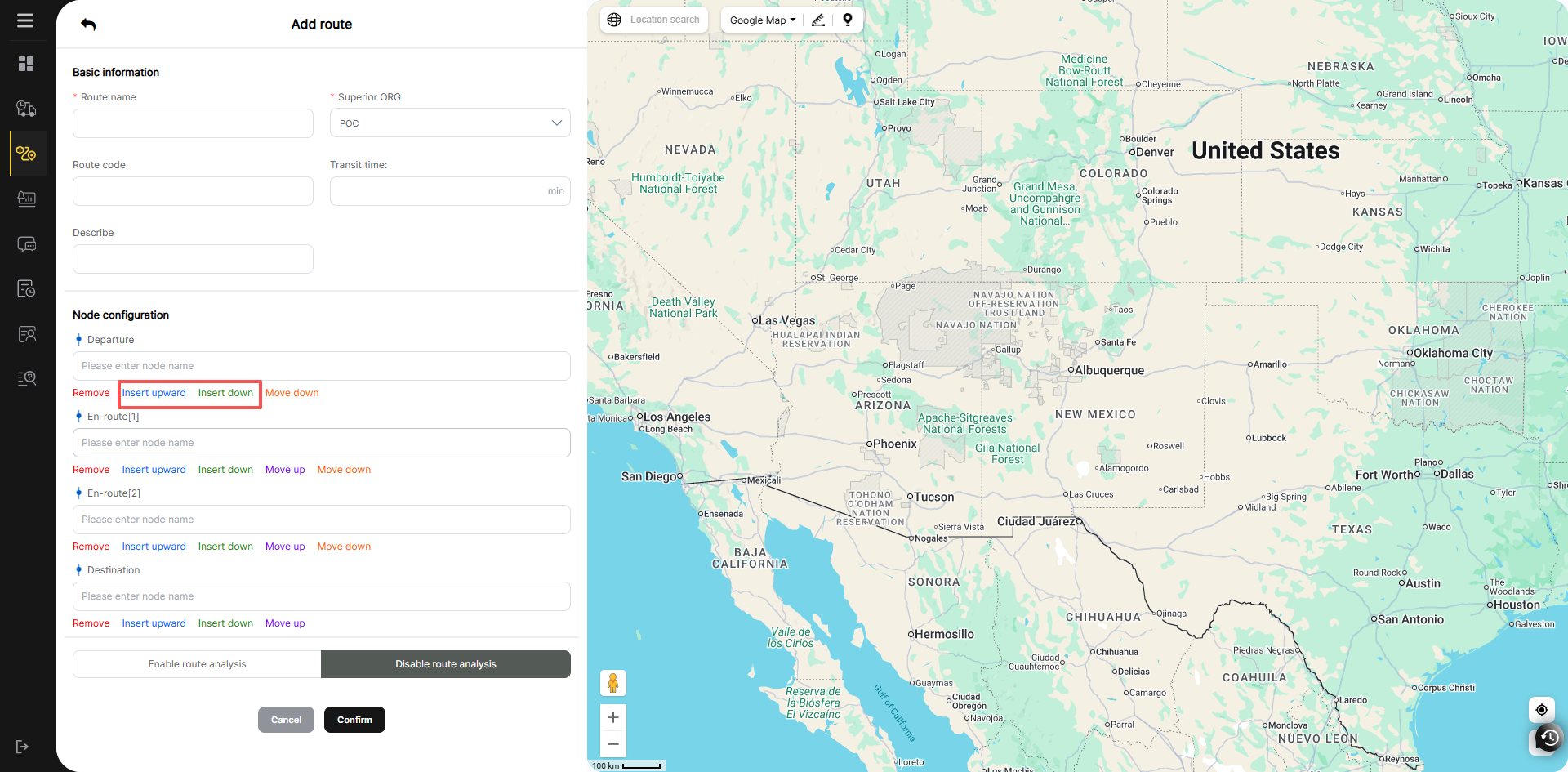
According to the transportation route you need, you can add a transportation node above or below a certain node. These nodes are derived from the node information you created in Node Management.
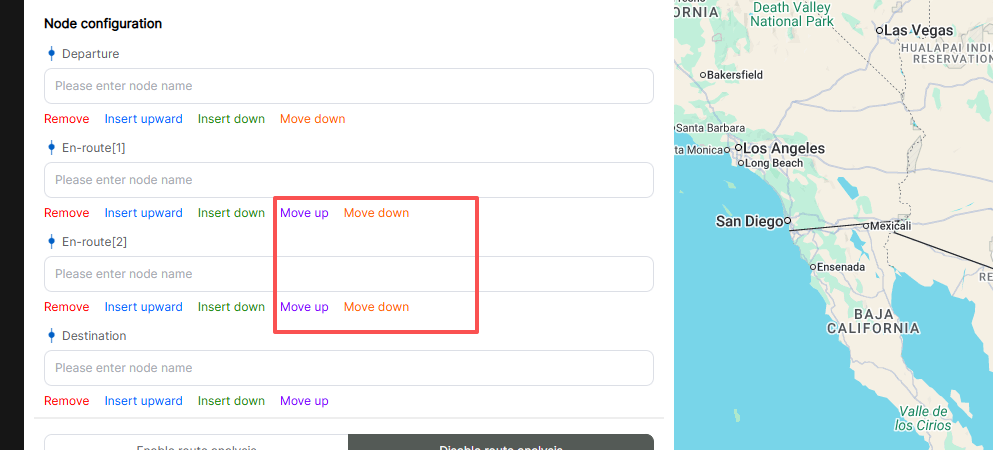
You can also delete a node above or below to adjust your route.
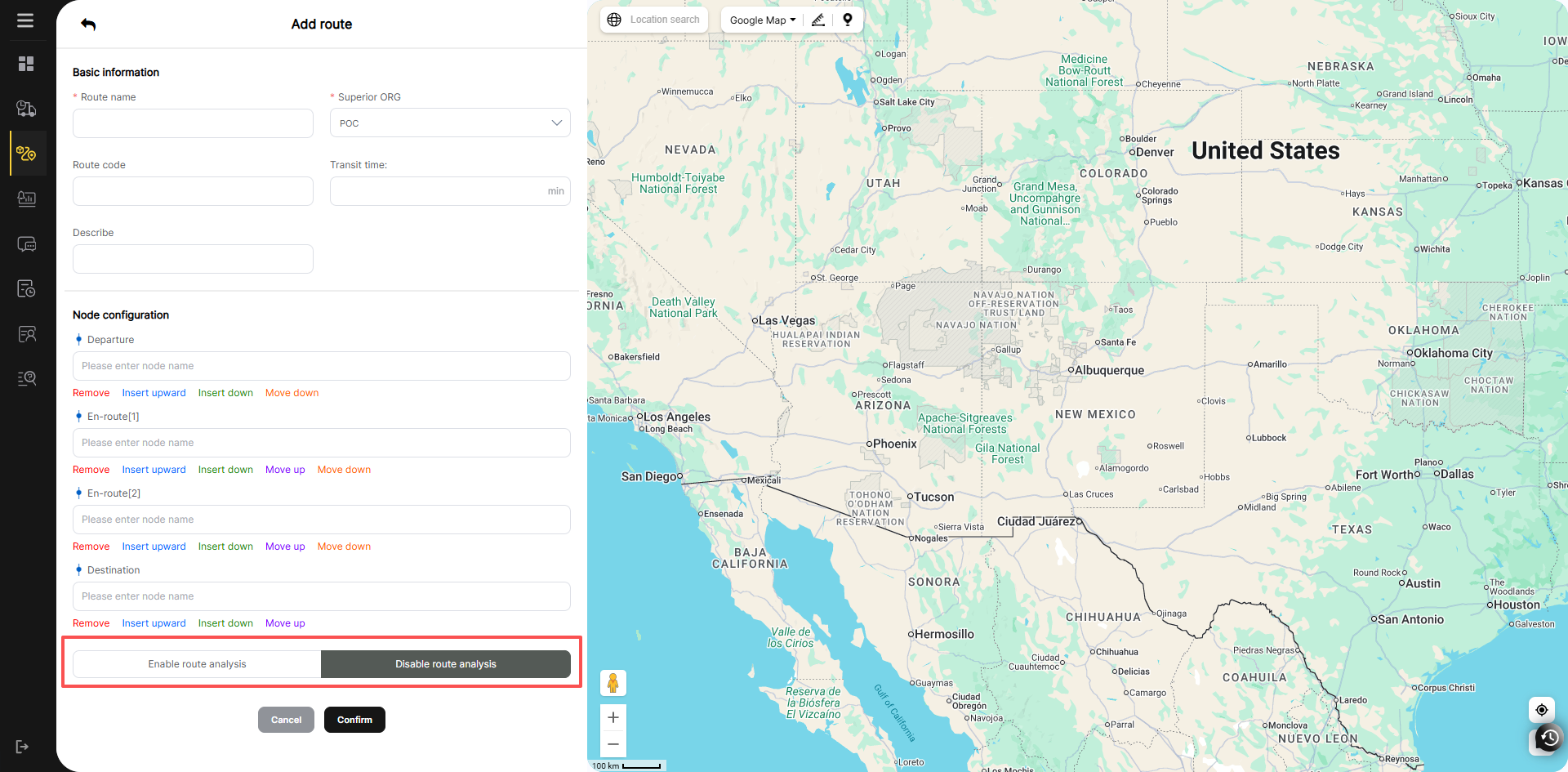
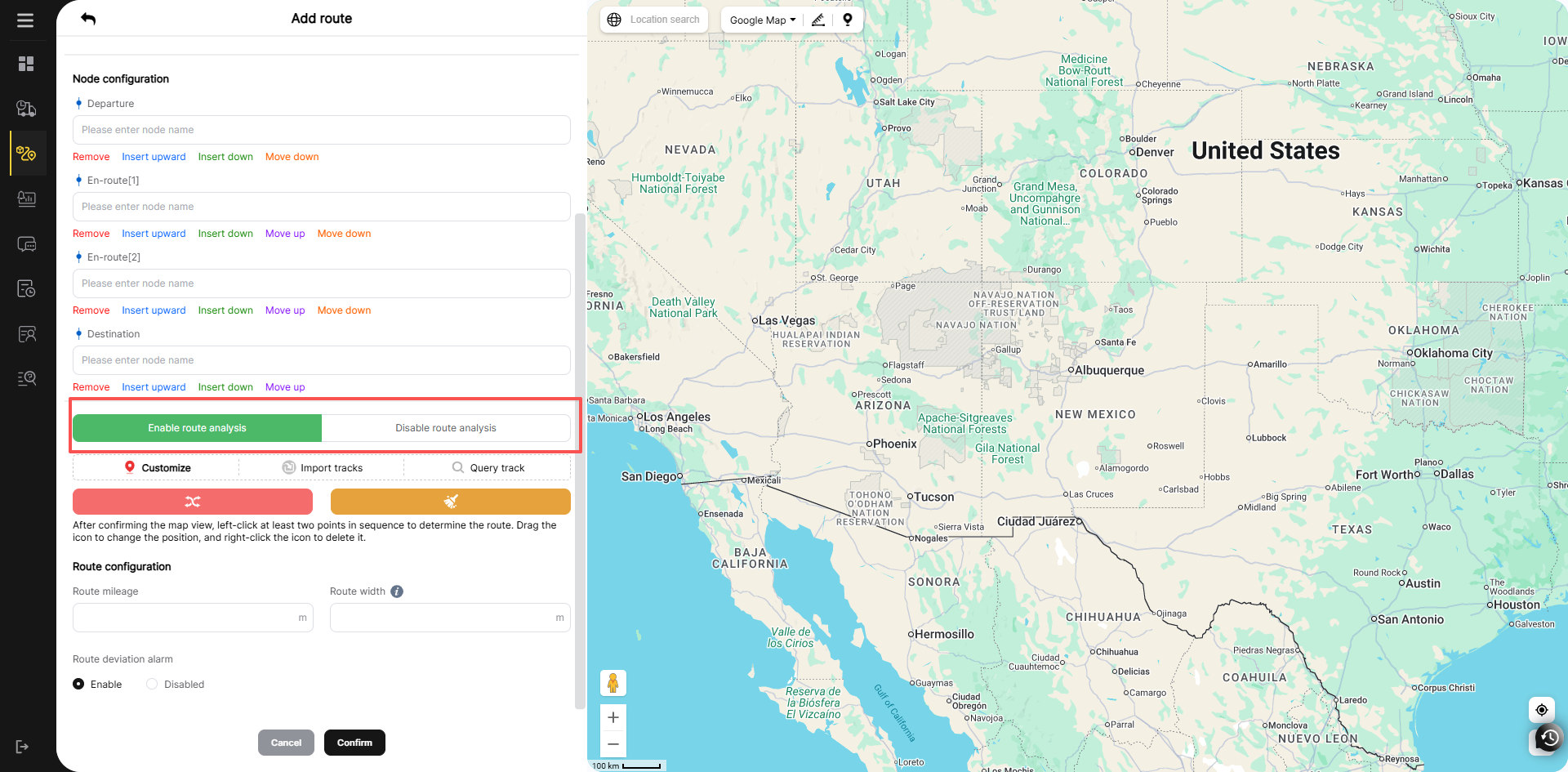
Finally, enable or disable route analysis according to business scenario requirements.
Enabling route analysis means planning a transportation route for the journey. If the vehicle does not follow this route and its positioning exceeds the With area of the transportation route, a route deviation alarm will be triggered.
If route analysis is disabled, no route planning is required, and no road deviation analysis will be performed.
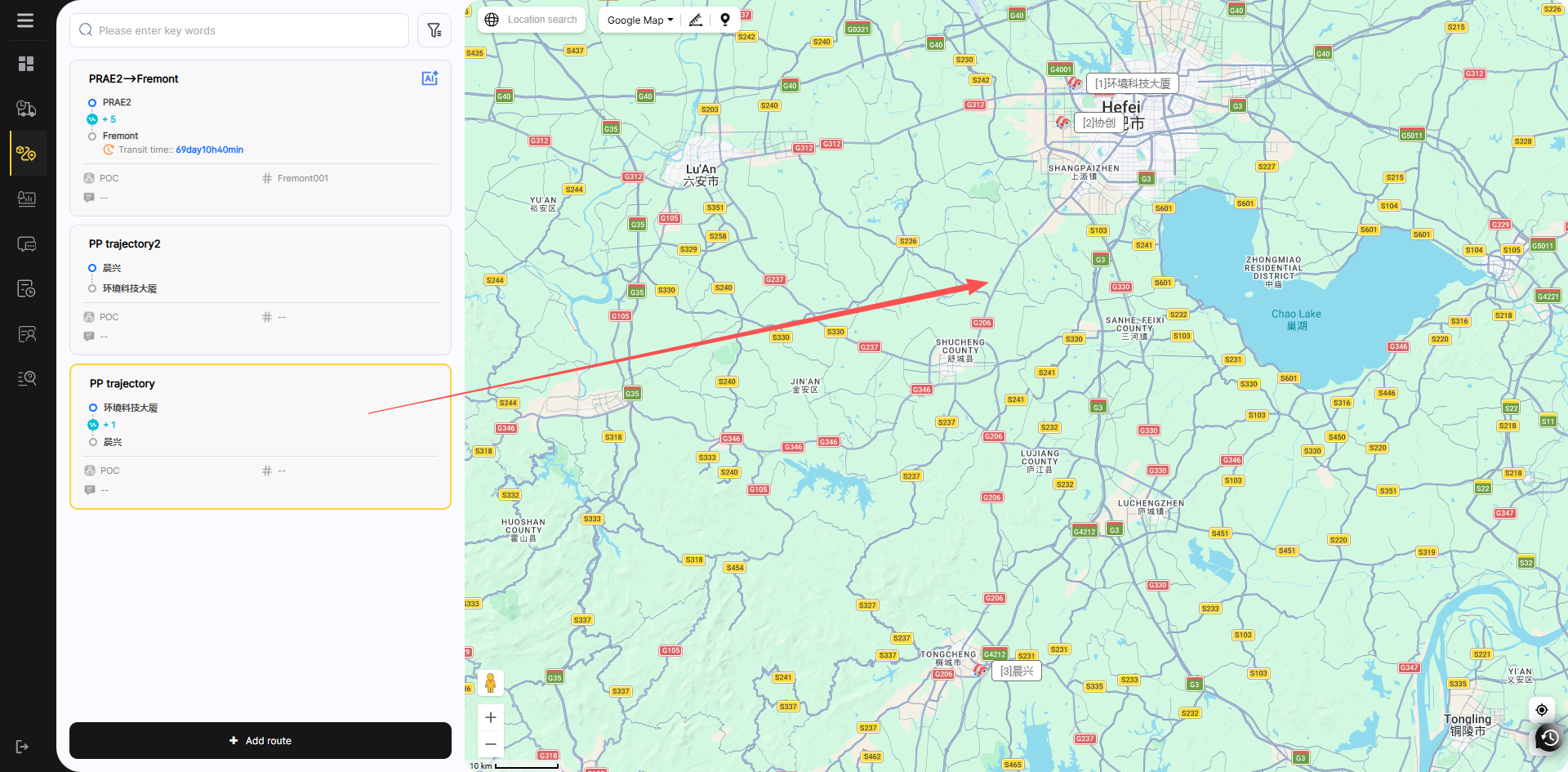
Below is the effect of enabling road deviation analysis. The blue AI icon on the left indicates that route analysis is enabled; this icon will not be displayed if it is disabled.
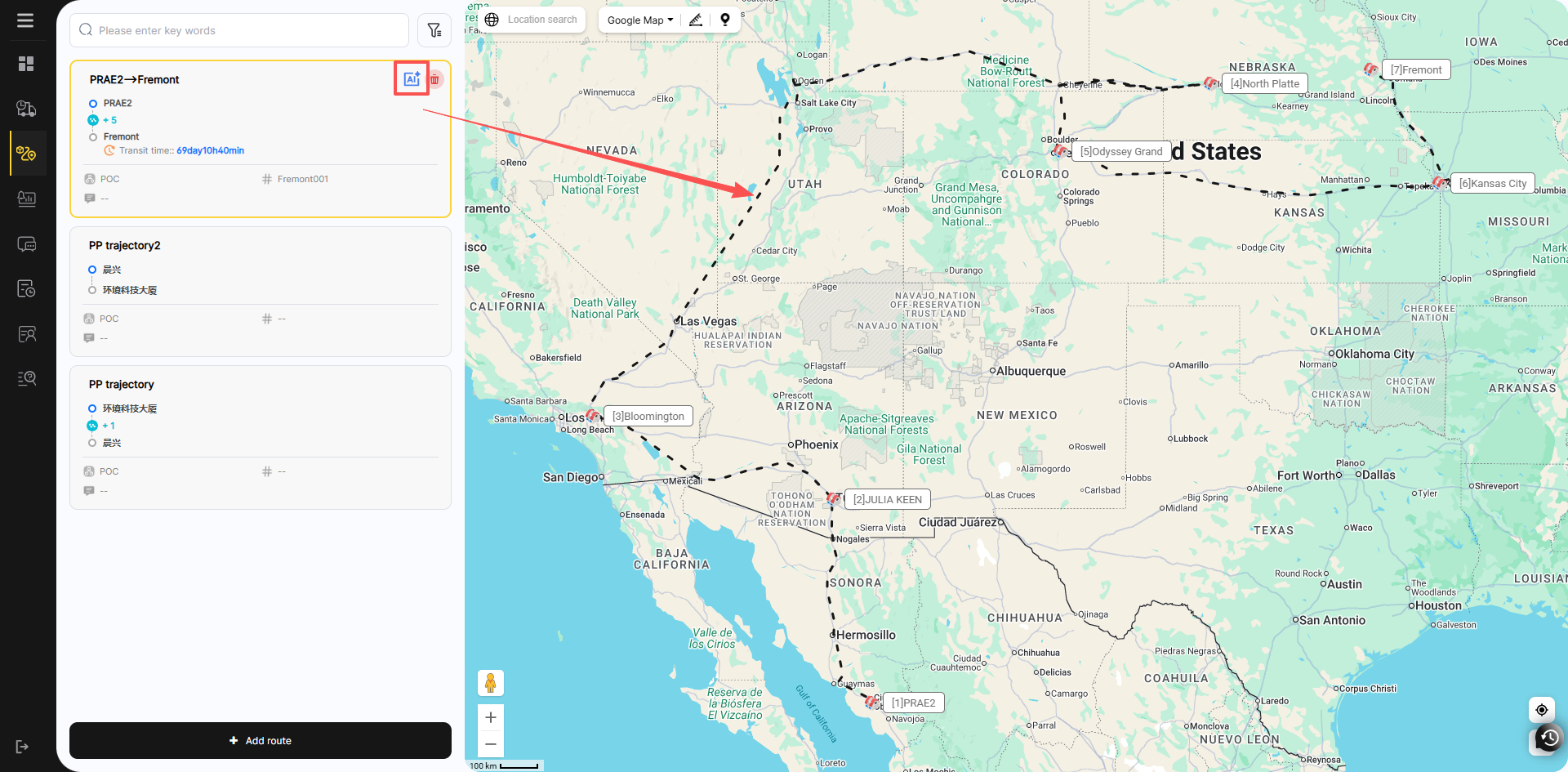
When route analysis is not enabled, the planned route dashed line will not be displayed; only the information of each node will be shown.